
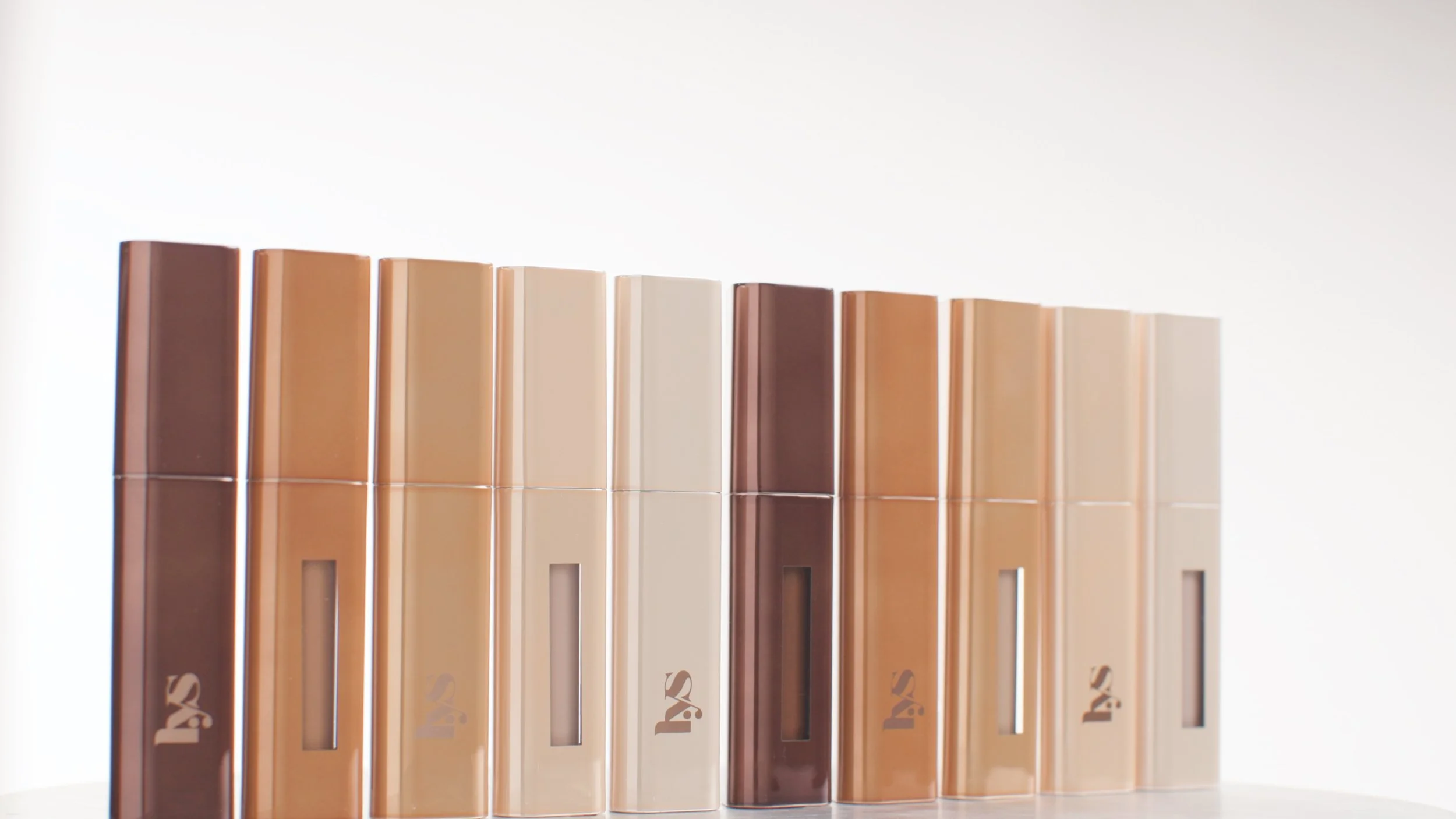
360° Product Photography: The Professional's Setup Guide
What Is 360-Degree Product Photography?
360-degree product photography is the process of capturing a series of still images of a product as it rotates through a complete revolution. Those images are then combined; either into an interactive spinning viewer for ecommerce, or into a smooth video loop for social media and brand content.
For ecommerce brands, 360-degree product views are one of the highest-performing content formats available. Shoppers who interact with a 360 spin are significantly more likely to add to cart and less likely to return the product, because they have a complete spatial understanding of what they are buying.
For commercial studios, the ability to deliver 360 content adds a high-value service line that most competitors cannot offer without a purpose-built rig.
The Equipment You Need
A motorised turntable
This is non-negotiable for professional 360 work. Hand-rotating a product and pressing the shutter manually produces inconsistent frame spacing, motion blur from handling vibration, and products that shift position between frames. A motorised stepper turntable moves in exact, programmed increments; you define the number of frames (typically 24, 36, or 48 for a full spin), and the turntable steps precisely to each position and dwells while the camera fires.
For commercial 360 work, you need a turntable rated for the product weight and one that accepts step-and-direction control. The Turner from KN Moco handles up to 120kg; suitable for virtually every product category from cosmetics to appliances, and connects directly to Dragonframe and Lensmaster controllers for frame-synced capture.
A camera with tethered capture
Shooting tethered to a laptop or tablet gives you immediate review of each frame, consistent exposure across the sequence, and the ability to trigger the shutter programmatically from your motion controller. Any DSLR or mirrorless camera with a USB or USB-C tethering connection works. Canon and Sony cameras are the most common in professional product photography setups; Dragonframe supports a wide range of both brands.
A controller for synced capture
For professional 360 photography, you need a controller that can command both the turntable position and the camera shutter from the same timeline. Dragonframe DMC-32 is the standard choice for stop-motion-style frame-by-frame capture. The workflow is: the controller commands the turntable to step to the next position, waits for the dwell period, triggers the camera shutter, waits for the capture to confirm, then steps to the next position.
Consistent lighting
360 photography is unusually demanding on lighting consistency because any variation in light — shadows shifting as the product rotates, a reflection moving across a surface — will be visible as a flicker in the finished spin. Use continuous lights rather than strobes where possible. If you use strobes, connect them to your controller's trigger output so they fire in sync with each frame.
A background sweep or lightbox
White seamless paper or a fabric sweep gives you a consistent background that can be removed in post or used as-is for a clean product presentation. Lightboxes work well for smaller products where you need even, diffuse light without shadows from the sides.
Camera Settings for 360 Product Photography
Aperture
Use a small aperture; f/8 to f/16 for most product sizes, to maximise depth of field across the product. For products with significant depth (shoes, bags, electronics with thick bodies), f/11 is a common starting point.
ISO
Keep ISO as low as possible (100 or 200 for most studio setups) to minimise noise, which becomes visible in smooth backgrounds across the 360 sequence. A tripod is essential since you will be using slower shutter speeds at low ISO.
Shutter speed
For tethered still capture with a motorised turntable dwell, shutter speed is determined by your light level rather than motion blur (the product is stationary during the exposure). Use the correct exposure for your lighting setup. For continuous light setups, 1/125s is a typical starting point to avoid fluorescent flicker.
White balance
Set a custom white balance using a grey card before your first frame. Lock it. Do not use auto white balance for 360 sequences; any shift in colour temperature between frames creates a visible flicker.
The Workflow: From Setup to Deliverable
Step 1: Set up and level your turntable
Place The Turner on your shooting surface and adjust the levelling feet until the top plate reads level in both axes. Rotate the platform slowly by hand through a full revolution and confirm there is no wobble or lateral movement. A level, stable platform is the foundation of a clean 360 sequence.
Step 2: Position your product and camera
Place the product centrally on the turntable. For tall or asymmetric products, you may need to mark the centre of the plate with tape and position the product's centre of mass directly above it. Mount your camera on a tripod at the shooting angle; typically 30-45 degrees above horizontal for most product categories.
Step 3: Configure your controller
In Dragonframe (or Lensmaster), configure the turntable axis: set the total rotation to 360 degrees, divide by your target frame count (36 frames = 10 degrees per step, 48 frames = 7.5 degrees per step), and set the dwell time to allow for camera capture and flash recycle if applicable. Configure the camera trigger output.
Step 4: Run a test sequence
Run the full sequence without capturing, just monitor the turntable motion and confirm it steps evenly and returns cleanly to the start position. Then run a single-frame test at each end of the sequence to check focus and exposure hold. Only then run the full capture.
Step 5: Review and repeat
Review the full sequence on your capture laptop before changing the setup. Look for: consistent background tone across all frames, no motion blur, consistent product position (the product should not drift or shift on the platform), consistent shadow position.
Step 6: Post-processing and delivery
For ecommerce 360 spin, the image sequence is fed into a 360 spin viewer tool (many ecommerce platforms have native 360 viewers; standalone options include WebRotate 360). For video delivery, import the sequence into Premiere Pro or DaVinci Resolve and export as a loop. At 25fps, 36 frames gives you a 1.44-second loop; typical for product reveal content.
How Many Frames Do You Need?
Frame Count: 24 frames | 15° Per Step
Best For Social media loops, simple products. Fast to shoot and edit
File Size / Time: Fast to shoot and edit
Frame Count: 36 frames | 10° Per Step
Best For: Ecommerce 360 viewers, standard
File Size / Time: Moderate. Industry standard
Frame Count: 48 frames | 7.5° Per Step
Best For: High-end ecommerce, complex surfaces
File Size / Time: Longer but smoother
Frame Count: 72 frames | 5° Per Step
Best For: Jewellery, watches, reflective products
File Size / Time: Longest but most refined
Frequently Asked Questions
-
You can, but the results will show it. Manual rotation produces inconsistent frame spacing and handling vibration that creates artefacts in the finished spin. For professional ecommerce and brand content, a motorised stepper turntable is the correct tool.
-
Yes. The Turner was designed specifically with 360 photography and product video in mind. Its NEMA 34 stepper motor and planetary gearbox give you arc-minute accuracy across the full 360 degrees, and its step-and-direction input allows frame-synced capture via Dragonframe or Lensmaster.
-
Dragonframe is the most commonly used software for frame-synced 360 product photography. It handles turntable control and camera trigger from a single interface. For video-only 360 loops (no stop-and-shoot workflow), you can run the turntable in continuous rotation mode via a simple stepper controller and capture video directly.
-
Use a sticky mat, museum putty, or purpose-built product fixture to secure the product to the turntable plate. For tall or top-heavy products, a low-profile product stand with a mounting thread can be bolted through the M6 holes in the top plate.
-
Yes. The Turner supports both step-and-dwell capture (for still 360 sequences) and continuous slow rotation (for video loops). In continuous mode, programme the rotation speed in your controller software. A common speed for product reveal video is one full rotation in 8-12 seconds.
Ready to add 360 photography to your studio services?
The Turner is available now from the KN Moco store: 120kg capacity, 2-week lead time, UK-made